User Guide

Last Updated: February 9, 2026

Email: [email protected]

Website: kei.kyoto

01/

Requirements

System Requirements

  • macOS 26.2 or later
  • Apple Silicon Mac with Metal support
  • Built-in or USB webcam
  • 4K camera input supported (hardware dependent)
02/

Setup

Setup Steps

  1. Open LUTCam from your Applications folder
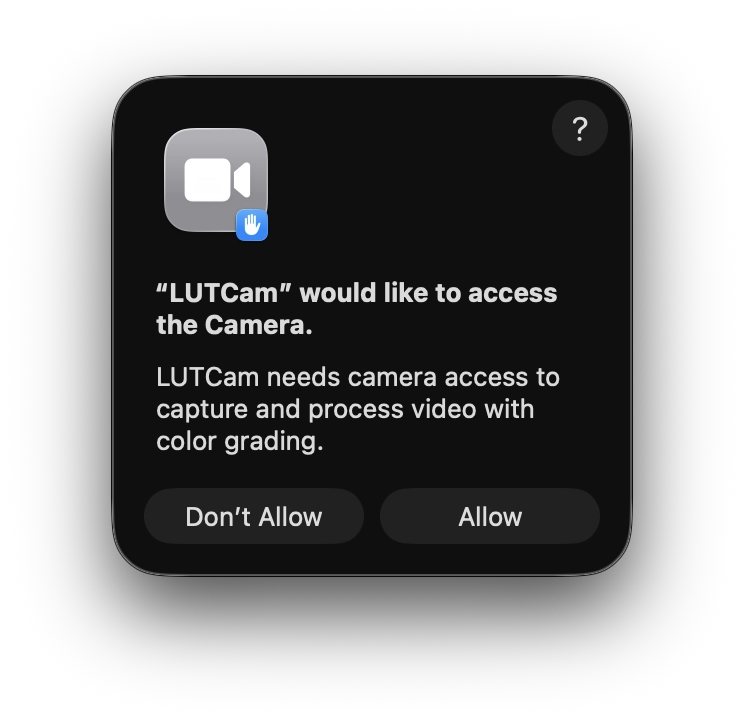
  2. When prompted, grant camera permission
    Camera permission dialog
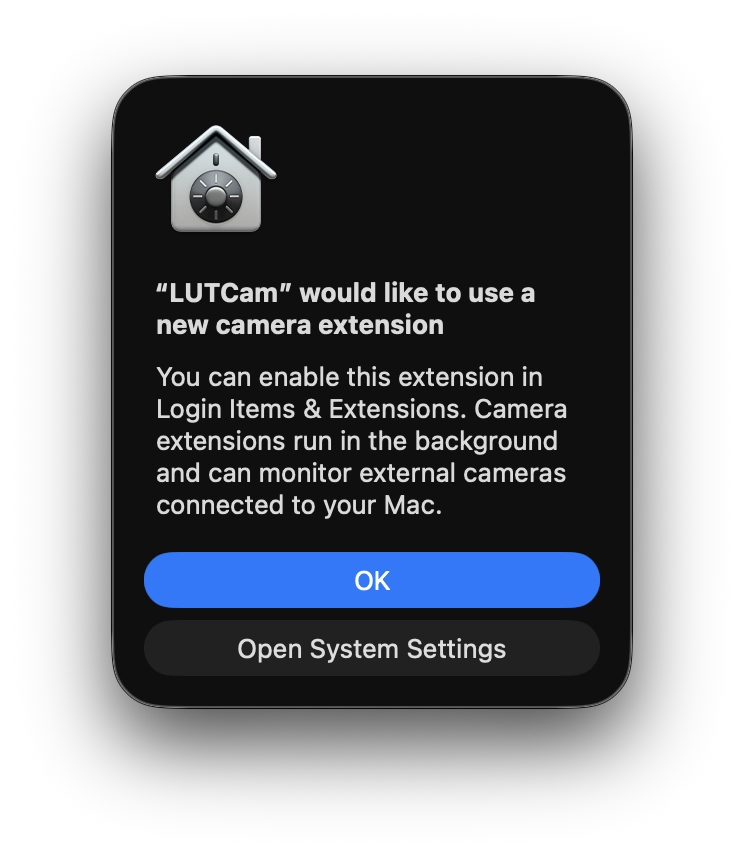
  3. When prompted, click "Open System Settings" to allow the LUTCam camera extension
    Camera extension permission dialog
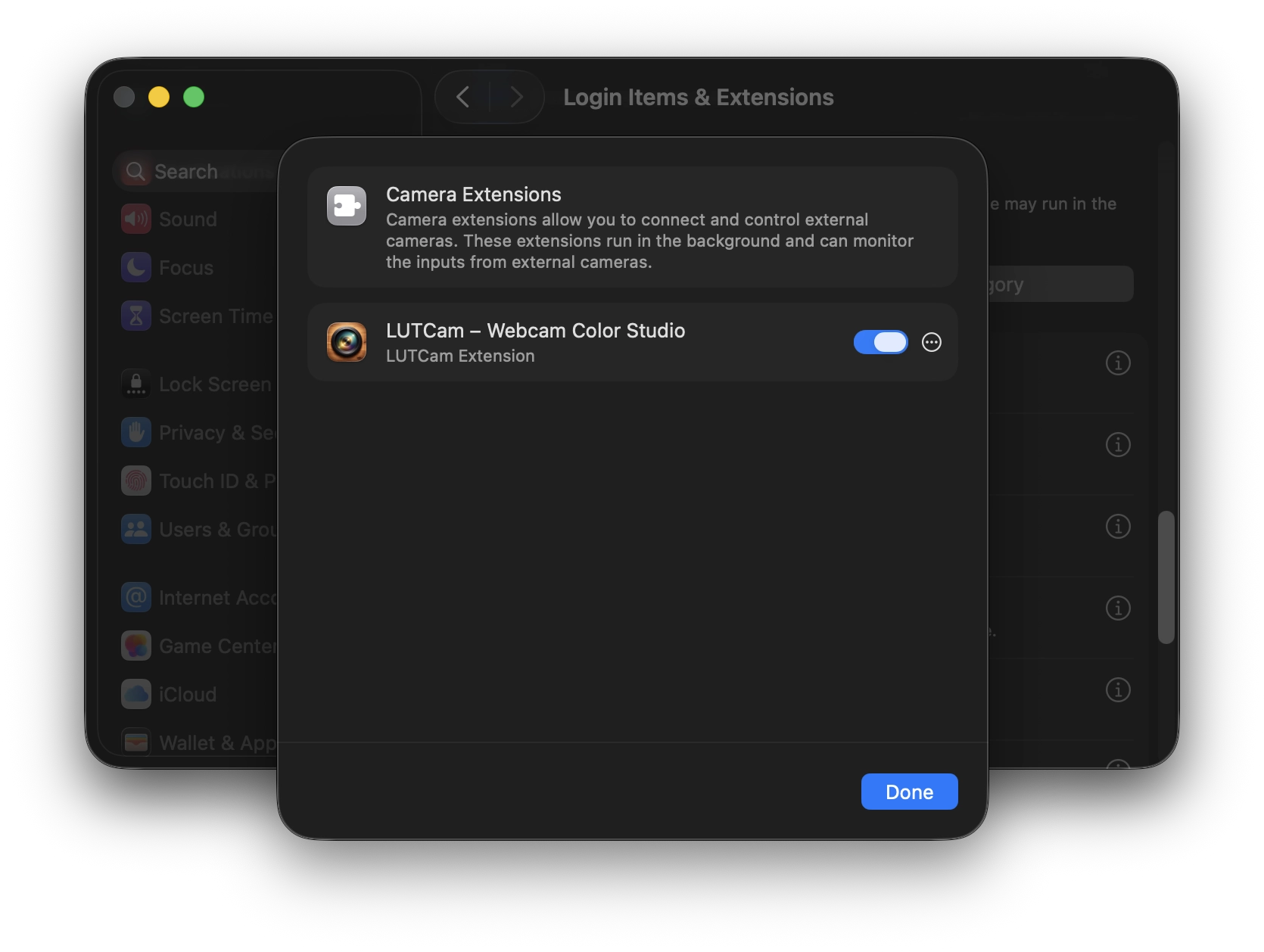
  4. Automatically displayed dialog, enable the LUTCam camera extension
    Login Items & Extensions settings
  5. Open Zoom, Teams, Meet, or FaceTime and select "LUTCam Virtual Camera" from the camera dropdown
  6. Click "Start" in LUTCam
  7. You should see your camera feed in the preview window and the same feed in the video app

Notes

  • Some apps may require a restart to detect the virtual camera
  • Browsers may require granting camera permission to LUTCam
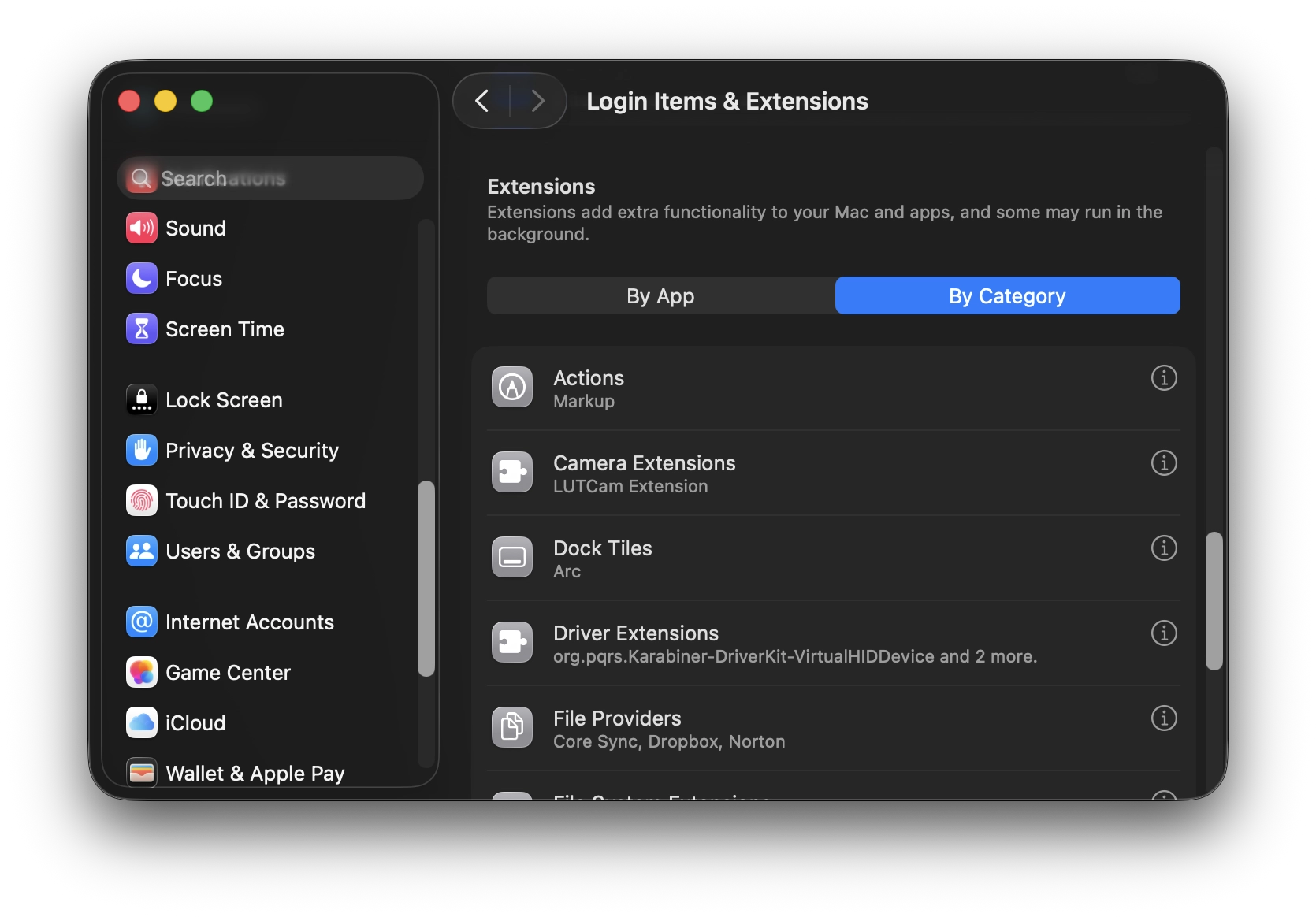
  • If the camera extension dialog doesn't appear, you can enable it manually in System Settings → Login Items & Extensions → Extensions by Category → Camera Extensions → clicking the i icon to open the dialog and enable it
    Login Items & Extensions — Camera Extensions category
03/

Features Overview

Camera Controls

  • Camera Picker: Select your physical webcam
  • Start/Stop: Control webcam capture
  • Preview: Real-time view of your camera feed with all adjustments applied

LUT Color Grading

How to Import LUTs:

  1. Click "Import LUT" button
  2. Select a .cube file from Finder
  3. LUT appears in your LUT list

Applying LUTs:

  • Select a LUT from the dropdown menu
  • Toggle "LUT ON/OFF" to compare before/after
  • Adjust the intensity slider (0-100%) to control strength

LUT Manager (Premium):

  • Open: File -> Manage LUTs... (⌘M)
  • Rename, reorder, show/hide, and remove LUT references
  • Uses security-scoped bookmarks; files stay in their original locations

Free vs Premium:

  • Free: Up to 3 LUTs
  • Premium: Unlimited

Supported Format:

  • .cube / .png format
  • Recommended sizes: 17×17×17, 33×33×33, or 65×65×65
  • Maximum file size: 10 MB

Where to generate LUTs:

Light & Color Adjustments

  • Exposure: Brightness control (-3.0 to +3.0)
  • Highlights: Bright area adjustment (-100 to +100)
  • Shadows: Dark area adjustment (-100 to +100)
  • Contrast: Image contrast (-100 to +100)
  • Saturation: Color intensity (-100 to +100)
  • White Balance: Warm/cool color balance (-100 to +100)
  • Tint: Green/magenta balance (-100 to +100)

Presets

What are Presets? Presets are saved combinations of LUT + light & adjustments. They let you quickly switch between different looks.

Creating Presets:

  1. Adjust settings to your liking (select LUT, tweak tone controls)
  2. Click "+NEW" button in the PRESETS section
  3. Name your preset
  4. Preset is saved and appears in the list

Using Presets: Click any preset name to load its settings instantly.

Import/Export Presets — Premium only:

  • Export: File → Import/Export Presets... (⌥⇧⌘P)
  • Share .lutcam-preset files with other users

Free vs Premium:

  • Free: Up to 3 presets
  • Premium: Unlimited
04/

Premium Features

Purchase via "Unlock" → "Unlock with Apple".
Unlocking Premium gives you access to:

  • Unlimited LUT imports
  • LUT Manager (rename/delete/show/hide saved LUTs, etc.)
  • Unlimited preset creation
  • Preset import/export

Restoring Your Purchase

Reinstalled LUTCam or using it on a new Mac?

  1. Click "Restore Purchase" in the unlock modal
  2. Your purchase is tied to your Apple ID and syncs across all your Macs
  3. No additional charge — you only pay once

Redeeming a Promo Code

  1. Click "Unlock" button in LUTCam
  2. Click "Redeem Promo Code"
  3. Mac App Store opens to the redemption page
  4. Enter your promo code
  5. Return to LUTCam — premium unlocks automatically

Premium not unlocking? See the Troubleshooting section below.

05/

Trouble
shooting

Virtual Camera Not Appearing in Video Apps

Problem: LUTCam Virtual Camera doesn't show in video apps' camera dropdown

Solutions:

  1. Launch LUTCam from /Applications so the system extension can register.
  2. Open System Settings → Privacy & Security → Camera and enable LUTCam.
  3. Open System Settings → Privacy & Security → Accessibility and enable LUTCam.
  4. Quit and relaunch LUTCam after changing permissions; then restart any target video apps.

Low Frame Rate / Choppy Video

Problem: Virtual camera feed is laggy or slow

Solutions:

  1. Close other GPU-intensive apps (video editors, games)
  2. Try a smaller LUT size (17×17×17 instead of 65×65×65)
  3. Reduce physical camera resolution if possible (1080p → 720p)

LUT Import Failed

Problem: "Unable to import LUT" error

Solutions:

  • Ensure file is .cube or .png format (not .3dl or other formats)
  • Check file size is under 10 MB
  • Verify LUT file isn't corrupted (open in text editor — should show "LUT_3D_SIZE")
  • Try re-downloading LUT from the original source

Purchase Not Restoring

Problem: Premium features not unlocking after "Restore Purchase"

Solutions:

  1. Ensure you're signed into the same Apple ID used for the original purchase
  2. Check your internet connection (restore requires network access)
  3. Wait 30 seconds and try "Restore Purchase" again
  4. Restart LUTCam and check premium status
  5. Contact Apple Support if the issue persists (purchases are managed by Apple)
06/

Limitations

Real-Time LUT Limitations

LUTs applied to a virtual camera may not look identical to the same LUT applied to photos or videos in professional editing tools. This is expected for real-time video pipelines and standard video formats, This behavior helps maintain stable performance during live video calls.

Camera Hardware Dependency

Final image quality depends heavily on your physical camera. Sensor quality, lens characteristics, auto exposure, white balance behavior, and low-light performance all affect the result. Higher-quality webcams or external cameras generally produce better output.

Video Conferencing App Processing

Video conferencing apps (such as Zoom or Google Meet) may apply their own processing like auto exposure, white balance, or noise reduction. These behaviors are controlled by the video app, not LUTCam.

Resolution Limitations

LUTCam allows you to select 480p, 720p, 1080p, or 4K, depending on your camera’s capabilities. However, the final transmitted or displayed resolution may be lower than the selected option. Video conferencing apps may adjust resolution based on performance optimization, network conditions, system load, or app- or account-level settings. The final resolution is determined by the receiving application, not by LUTCam.

07/

FAQ

Does LUTCam record or save video?

No. All video processing happens in real-time in RAM. No video or images are saved to disk. Camera data never leaves your device.

Does LUTCam work with external USB webcams?

Yes. Select your USB camera from the camera dropdown. Note: External cameras may have slightly higher latency.

Can I use LUTCam with Zoom/Teams/Meet simultaneously?

Yes. Start the virtual camera in LUTCam, then select "LUTCam Virtual Camera" in your video app.

What happens if I close LUTCam during a video call?

The virtual camera feed will stop. Your video conferencing app may switch to a different camera or show a black screen.

Are my LUTs and presets synced across devices?

No. LUTs and presets are stored locally on each Mac. Use the preset export feature (Premium) to share between devices.

Can I share presets with other LUTCam users?

Yes. As a Premium feature, use File → Export Presets to create .lutcam-preset files. Other users can import them via File → Import Presets.

Do exported presets include the LUT file?

No. Presets reference LUTs by name only. If sharing presets, also share the .cube LUT file separately.

Does LUTCam use the internet or send data?

No automatic data transmission. Network is used only for optional feedback submission (Send Feedback).

How do I uninstall LUTCam?

Drag LUTCam.app to Trash. The system extension will be removed automatically.

What's the difference between LUT and light & adjustments?

LUTs apply complex color transformations (like filters). Light & color adjustments are basic controls (brightness, contrast, etc.). Use both together for best results.

Why does my video look different in Zoom vs LUTCam preview?

Some video apps apply additional processing (auto white balance, noise reduction). Try disabling these in the app's video settings.

Can I use multiple LUTs at once?

No. Only one LUT can be active at a time. However, you can stack light & adjustments on top of the LUT.

Does LUTCam support 4K cameras?

Yes. LUTCam supports 4K input and can output up to 4K when your camera and settings allow. Some video apps may still downscale the feed for performance.

Is there a Windows version?

No. LUTCam is macOS-only

08/

Keyboard Shortcuts

  • Import Presets: ⇧⌘P
  • Export Presets: ⌥⇧⌘P (Premium only)
  • Manage LUTs: ⌘M
  • Save New Preset: ⇧⌘S
  • Reset Adjustments: ⌘R
  • Undo / Redo: ⌘Z / ⇧⌘Z
09/

Privacy & Security

What LUTCam Does NOT Do

  • No video recording or screenshots
  • No analytics or usage tracking
  • No automatic crash reporting (unless you submit feedback)
  • No cloud services or cloud storage
  • No background processes when app is closed
  • No access to your files (only files you explicitly select)

What LUTCam Does

  • All processing is local (Metal GPU on your Mac)
  • Camera frames processed in real-time and immediately discarded
  • LUTs and presets stored locally only
  • Payments processed by Apple (we don't see your payment info)
  • Optional feedback submission (Send Feedback)

Camera Permission

  • Required for capturing your webcam feed
  • No video is recorded or transmitted
  • Revoke anytime: System Settings → Privacy & Security → Camera

Full Privacy Policy: https://app.kei.kyoto/privacy/

11/

Support

Need Help?

Email: [email protected]
Website: https://kei.kyoto

In-App Feedback

Use Send Feedback in the app
Include app version, OS version, and description
No personal information is collected unless you submit your email address for reply.

Purchase Support

Managed by Apple App Store
For refunds or billing: Settings → Apple ID → Media & Purchases

Privacy Questions

Email: [email protected]
Privacy Policy: https://app.kei.kyoto/privacy/