01/
Requirements
System Requirements
- macOS 26.2 or later
- Apple Silicon Mac with Metal support
- Built-in or USB webcam
- 4K camera input supported (hardware dependent)
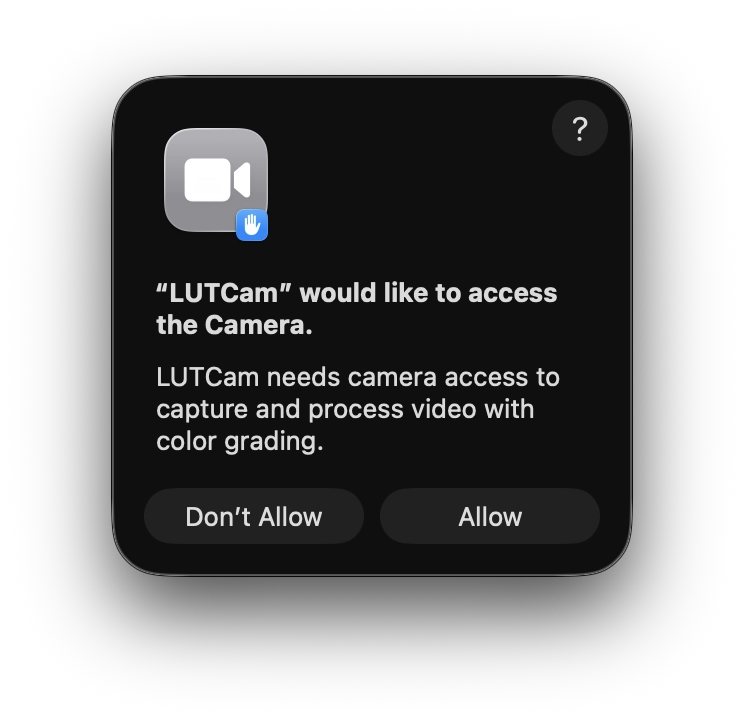
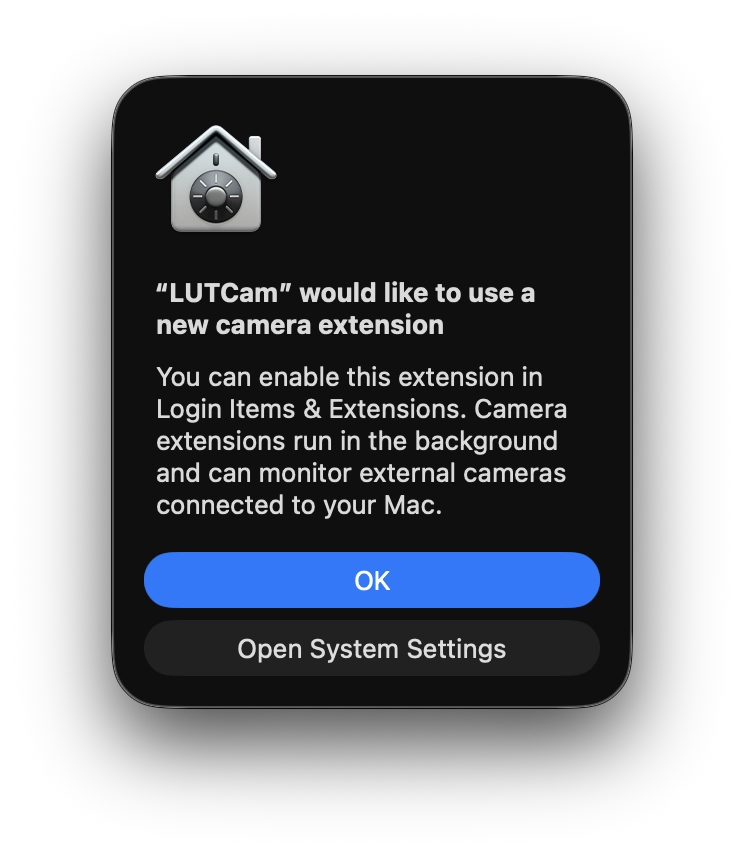
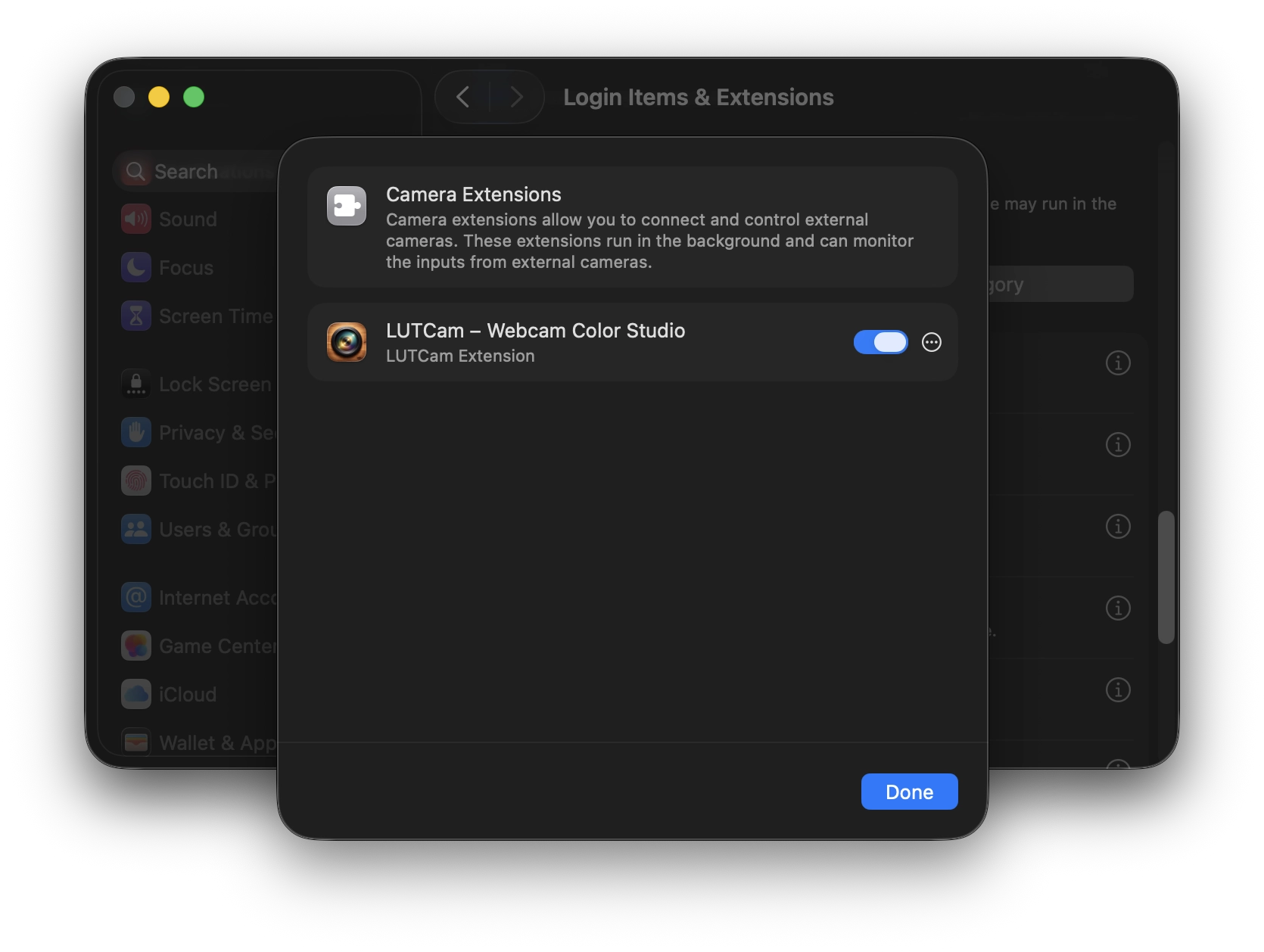
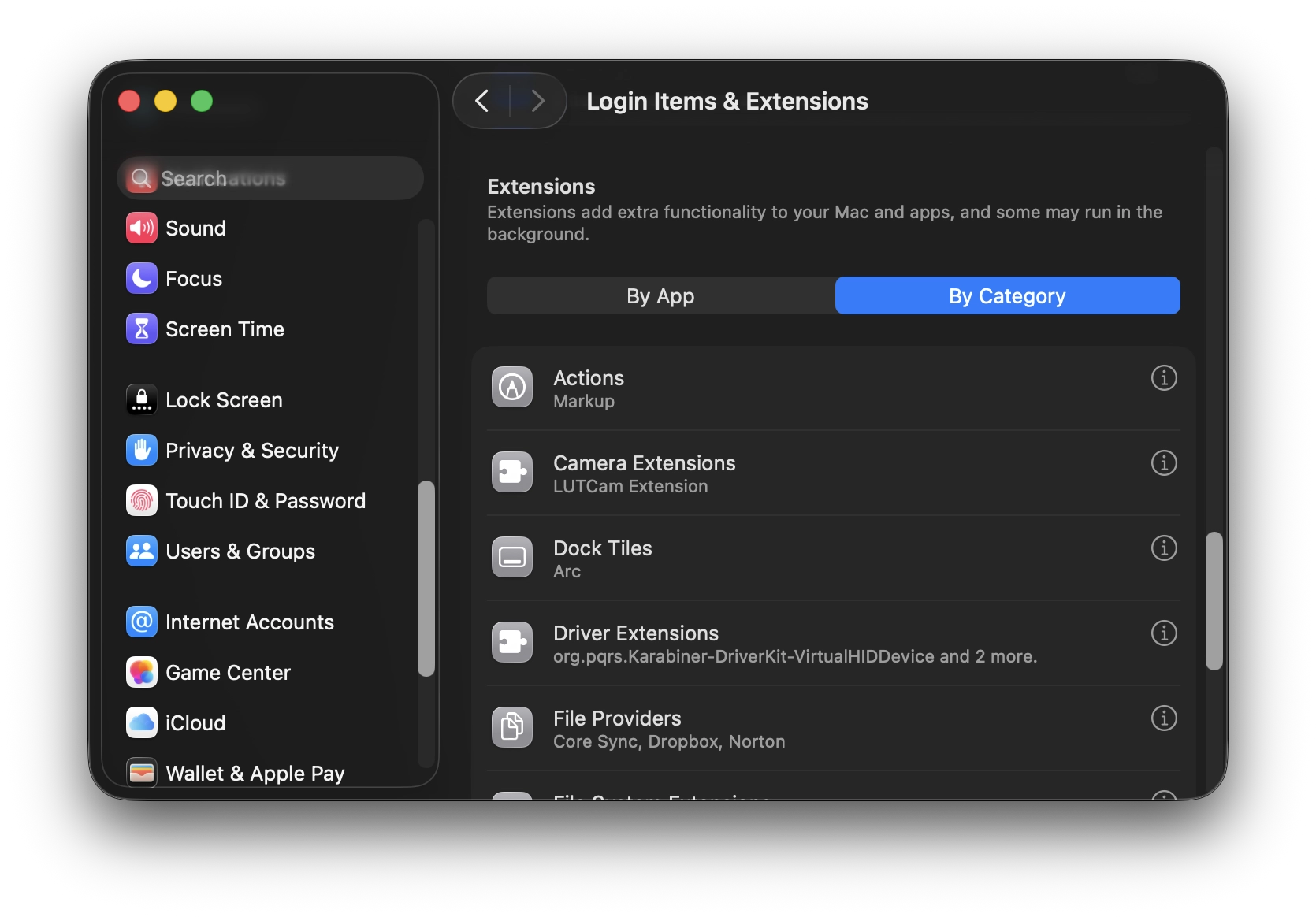
How to Import LUTs:
Applying LUTs:
LUT Manager (Premium):
Free vs Premium:
Supported Format:
Where to generate LUTs:
What are Presets? Presets are saved combinations of LUT + light & adjustments. They let you quickly switch between different looks.
Creating Presets:
Using Presets: Click any preset name to load its settings instantly.
Import/Export Presets — Premium only:
Free vs Premium:
Problem: LUTCam Virtual Camera doesn't show in video apps' camera dropdown
Solutions:
Problem: Virtual camera feed is laggy or slow
Solutions:
Problem: "Unable to import LUT" error
Solutions:
Problem: Premium features not unlocking after "Restore Purchase"
Solutions:
LUTs applied to a virtual camera may not look identical to the same LUT applied to photos or videos in professional editing tools. This is expected for real-time video pipelines and standard video formats, This behavior helps maintain stable performance during live video calls.
Final image quality depends heavily on your physical camera. Sensor quality, lens characteristics, auto exposure, white balance behavior, and low-light performance all affect the result. Higher-quality webcams or external cameras generally produce better output.
Video conferencing apps (such as Zoom or Google Meet) may apply their own processing like auto exposure, white balance, or noise reduction. These behaviors are controlled by the video app, not LUTCam.
LUTCam allows you to select 480p, 720p, 1080p, or 4K, depending on your camera’s capabilities. However, the final transmitted or displayed resolution may be lower than the selected option. Video conferencing apps may adjust resolution based on performance optimization, network conditions, system load, or app- or account-level settings. The final resolution is determined by the receiving application, not by LUTCam.
No. All video processing happens in real-time in RAM. No video or images are saved to disk. Camera data never leaves your device.
Yes. Select your USB camera from the camera dropdown. Note: External cameras may have slightly higher latency.
Yes. Start the virtual camera in LUTCam, then select "LUTCam Virtual Camera" in your video app.
The virtual camera feed will stop. Your video conferencing app may switch to a different camera or show a black screen.
No. LUTs and presets are stored locally on each Mac. Use the preset export feature (Premium) to share between devices.
Yes. As a Premium feature, use File → Export Presets to create .lutcam-preset files. Other users can import them via File → Import Presets.
No. Presets reference LUTs by name only. If sharing presets, also share the .cube LUT file separately.
No automatic data transmission. Network is used only for optional feedback submission (Send Feedback).
Drag LUTCam.app to Trash. The system extension will be removed automatically.
LUTs apply complex color transformations (like filters). Light & color adjustments are basic controls (brightness, contrast, etc.). Use both together for best results.
Some video apps apply additional processing (auto white balance, noise reduction). Try disabling these in the app's video settings.
No. Only one LUT can be active at a time. However, you can stack light & adjustments on top of the LUT.
Yes. LUTCam supports 4K input and can output up to 4K when your camera and settings allow. Some video apps may still downscale the feed for performance.
No. LUTCam is macOS-only
Full Privacy Policy: https://app.kei.kyoto/privacy/
Email: [email protected]
Website: https://kei.kyoto
Use Send Feedback in the app
Include app version, OS version, and description
No personal information is collected unless you submit your email address for reply.
Managed by Apple App Store
For refunds or billing: Settings → Apple ID → Media & Purchases
Email: [email protected]
Privacy Policy: https://app.kei.kyoto/privacy/
